
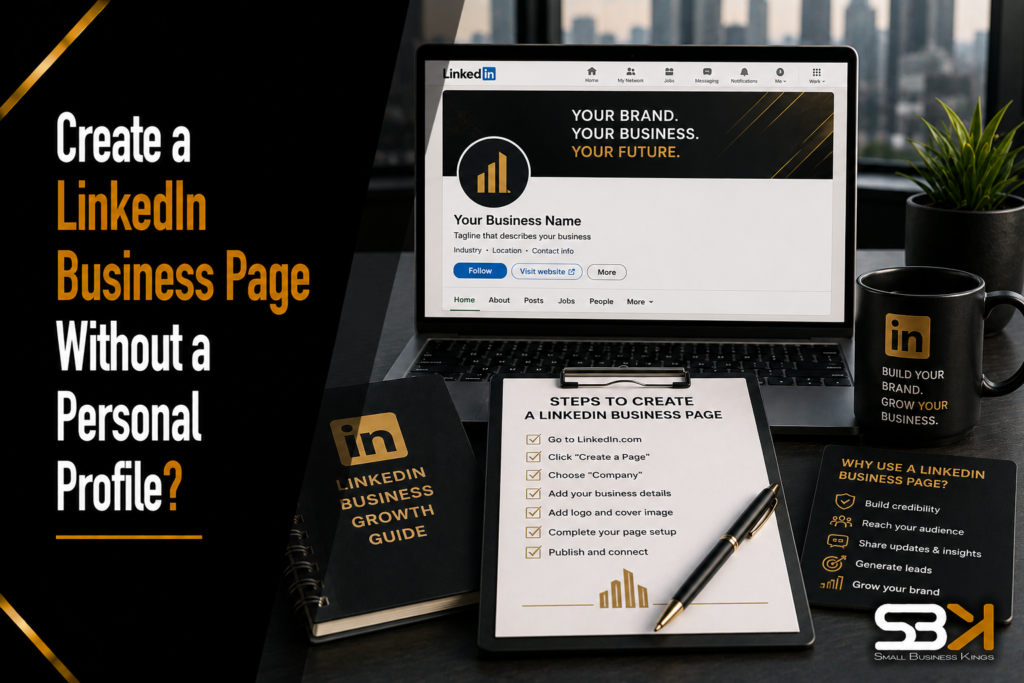
Create a LinkedIn Business Page Without a Personal Profile?
No — LinkedIn requires every company page to be created and managed through at least one active personal profile, and there’s no official workaround. What you can do is set up your business page so it doesn’t depend on any single employee’s account, keep your personal identity private if you prefer, and build in admin continuity so the page survives staff turnover without disruption.
Why LinkedIn Requires a Personal Profile
LinkedIn ties every company page to a real individual for two stated reasons: authenticity and accountability. Requiring a verified personal account behind every business page reduces fake or abandoned listings and gives LinkedIn — and your followers — a real point of contact if something goes wrong with the page.
Automate & Scale Your Small Business
Replace 10+ costly subscriptions with 1 all-in-one CRM, Funnels & Marketing Engine.
This isn’t a technical limitation you can engineer around. Attempts to use a shared, generic, or fake “admin” account violate LinkedIn’s terms of service and put both the personal account and the company page at risk of suspension. The realistic goal isn’t avoiding a personal profile — it’s making sure your business page doesn’t feel like, or actually become, dependent on one specific person.
What You Actually Need Before Starting
- An active personal LinkedIn profile, reasonably complete (photo, headline, current position)
- A minimum number of connections. LinkedIn’s exact threshold has been cited inconsistently across sources — confirm the current requirement directly in LinkedIn’s own Help Center before assuming a specific number, since these platform requirements can change.
- A business email address, ideally on your company’s own domain, since this supports later domain verification
- Your brand assets ready: a square logo (recommended at 300 x 300 pixels) and a banner image (recommended at 1128 x 191 pixels), your company description, website URL, industry, and size
Step-by-Step: Creating the Company Page
- Log in with a personal profile — your own, or one belonging to a trusted employee who will act as the initial admin.
- Click the “For Business” icon in the top-right of your LinkedIn homepage, then select “Create a Company Page.”
- Choose your page type: Small business, Medium to large business, Showcase page, or Educational institution.
- Enter your company details: official name, public LinkedIn URL, website, industry, size, and company type.
- Upload your logo and banner at the recommended dimensions above.
- Write a clear, keyword-relevant company description covering what your business actually does — this affects both LinkedIn search visibility and general credibility.
- Add your location(s) for local visibility, and a small number of relevant hashtags.
- Review everything and publish. The account used to create the page automatically becomes its first Super Admin.
Free Business Blueprint
Steal the roadmap smart entrepreneurs use to launch, grow, and scale their businesses while avoiding expensive mistakes.
Immediately Add Additional Admins — Don't Skip This Step
The single biggest mistake small businesses make here is leaving a page tied to one person’s account indefinitely. Go to Admin Tools > Manage Admins right after creating the page and add at least one or two additional trusted admins using their own verified accounts.
Launch Your Business On Fast VPS Hosting
Secure, high-performance hosting designed for growth. Don't lose sales to slow site speed.
LinkedIn offers a few distinct admin roles, and assigning them thoughtfully matters for a small business:
| Role | Can Do | Best Assigned To |
|---|---|---|
| Super Admin | Full control — edit page info, post, manage other admins, view analytics | The business owner plus at least one other long-term, trusted person |
| Content Admin/Editor | Create and publish posts, respond to comments, view analytics | Whoever handles day-to-day marketing or social media |
| Analyst | View analytics only, no posting or editing rights | Anyone who needs performance data without content control |
Practical rule for a small business: never let the page have only one Super Admin. If that person leaves the company, becomes unreachable, or simply forgets their password, you can end up locked out of your own company page with a slow, frustrating recovery process.
Keep Your Personal Profile Separate From the Page's Public Face
If you’d rather your personal identity not be the visible face of the business page, LinkedIn gives you real control here:
- Don’t add the company to your profile’s experience section unless you want to be listed publicly as an employee — the page won’t display you as an admin unless you choose to surface that connection.
- Remove yourself from any “Featured Employees” section, if one appears, to reduce visibility.
- Keep all admin communication tied to a business email, not your personal one, to maintain a clean separation.
- Adjust your personal profile’s privacy settings to control what’s publicly visible about you generally, independent of your admin status.
None of this changes the underlying requirement — you still need a genuine personal account behind the page — but it does let you keep your personal identity out of the spotlight if that’s your preference.
Verify Your Company Domain — Before You Need It, Not After
Domain verification confirms your business actually owns the website tied to your LinkedIn page, and it matters more than it might seem at first glance:
- It reduces disputes over admin access down the line
- It’s often required or strongly recommended before running LinkedIn ads or using employee-listing features
- It gives you a stronger position if you ever need LinkedIn support to resolve an access issue
You can typically verify through an email on your company’s domain, DNS verification, or direct website confirmation. Do this at setup, not after a problem arises — verification is far easier to complete calmly than to sort out during an active admin dispute.
Planning for Admin Continuity When Someone Leaves
This is the scenario every competing guide treats as an afterthought, but it deserves real planning:
- Maintain at least two long-term Super Admins at all times — ideally people unlikely to leave the company at the same time.
- Review your admin list on a regular schedule (quarterly is reasonable for most small businesses), removing anyone who’s left and confirming remaining admins are still active and reachable.
- If someone does leave, remove their admin access through Manage Admins before anything else — don’t wait, and don’t delete their personal LinkedIn account first, since doing so before removing their admin role can cause you to lose access entirely.
- If you inherit a page with an unreachable or departed sole admin, LinkedIn’s Help Center has a dispute process for this, but it typically requires documentation — business registration, domain ownership proof, and evidence the prior admin has left the company. Gathering this proactively, rather than scrambling for it during a dispute, saves real time.
A Word of Caution About Automation and "Growth" Tools
Several sources covering this topic promote third-party tools that promise automated engagement, scheduled AI-generated comments, or boosted post visibility. Be cautious here: LinkedIn’s terms of service prohibit automated or inauthentic engagement, and tools built around bots, fake engagement pods, or artificial boosting put your company page at real risk of restriction or suspension — the opposite of the credibility and continuity you’re trying to build.
If you want consistent growth, the durable levers are the unglamorous ones: post regularly with genuine content, respond to comments yourself, and encourage real employees to list the company as their employer, which organically extends your page’s visibility through real, verified connections rather than automated activity.
Optimizing Your Page Once It's Live
- Complete every section — an incomplete page appears less credible and ranks lower in LinkedIn’s own search.
- Use your actual industry keywords naturally in your description and specialties fields, rather than stuffing generic marketing phrases.
- Add rich media — images, videos, or a short company overview — to make the page feel active and current.
- Post consistently, even at a modest cadence. A page that posts occasionally but consistently outperforms one that posts heavily for two weeks and then goes quiet.
Keeping Your LinkedIn Page Consistent With the Rest of Your Brand
Your LinkedIn company page is one piece of a bigger online presence — it should use the same logo, colors, and messaging as your website and everywhere else customers find you, not a separately-designed one-off. If your business’s website, brand assets, or customer records aren’t set up consistently yet, it’s worth handling that alongside your LinkedIn page rather than as a separate, disconnected project later. SBK works with Softangles for exactly this — they handle business website design, hosting, logo and brand/media design, and CRM/sales pipeline setup, which keeps the same brand identity and customer data feeding into your LinkedIn presence instead of maintaining mismatched, disconnected profiles across platforms.
Frequently Asked Questions
Can I create a LinkedIn company page without any personal profile at all?
No — LinkedIn requires every company page to have at least one admin tied to a genuine, active personal profile, with no official workaround. Attempting to use a fake, shared, or generic account to bypass this violates LinkedIn’s terms of service and risks suspension of both the personal account and the page.
Will people see that I’m the admin of my company’s LinkedIn page?
Not automatically. LinkedIn doesn’t publicly display your admin status unless you add the company to your profile’s experience section or otherwise surface that connection yourself, so your personal identity can stay separate from the page’s public face if you prefer.
What happens to our LinkedIn page if the person who created it leaves the company?
As long as you’ve added additional Super Admins before that person leaves, the page continues functioning normally after their access is removed. If a page is left with only one admin who becomes unreachable, recovering access typically requires a documented dispute process through LinkedIn’s Help Center, which is why maintaining at least two long-term Super Admins from the start matters.
How many admins should a small business assign to its LinkedIn page?
At minimum, maintain two long-term Super Admins so the page never depends on a single person, plus Content Admin or Analyst roles for team members handling day-to-day posting or performance tracking. Reviewing this list on a regular schedule, such as quarterly, helps you catch and update outdated access before it becomes a problem.
Is domain verification necessary for a LinkedIn company page?
It’s not always required to simply create a page, but it’s often necessary for running ads or unlocking employee-listing features, and it strengthens your position if you ever need to resolve an admin access dispute. It’s much easier to complete at setup than during an active problem, so it’s worth doing early rather than waiting until you need it.
Launch Your Business On Fast VPS Hosting
Secure, high-performance hosting designed for growth. Don't lose sales to slow site speed.
Are LinkedIn automation and engagement-boosting tools worth using for a company page?
These tools generally violate LinkedIn’s terms of service around authentic engagement, and using them risks restriction or suspension of the page you’re trying to grow. Consistent, genuine posting and real employee advocacy are slower but far more durable ways to build a page’s visibility and credibility.