

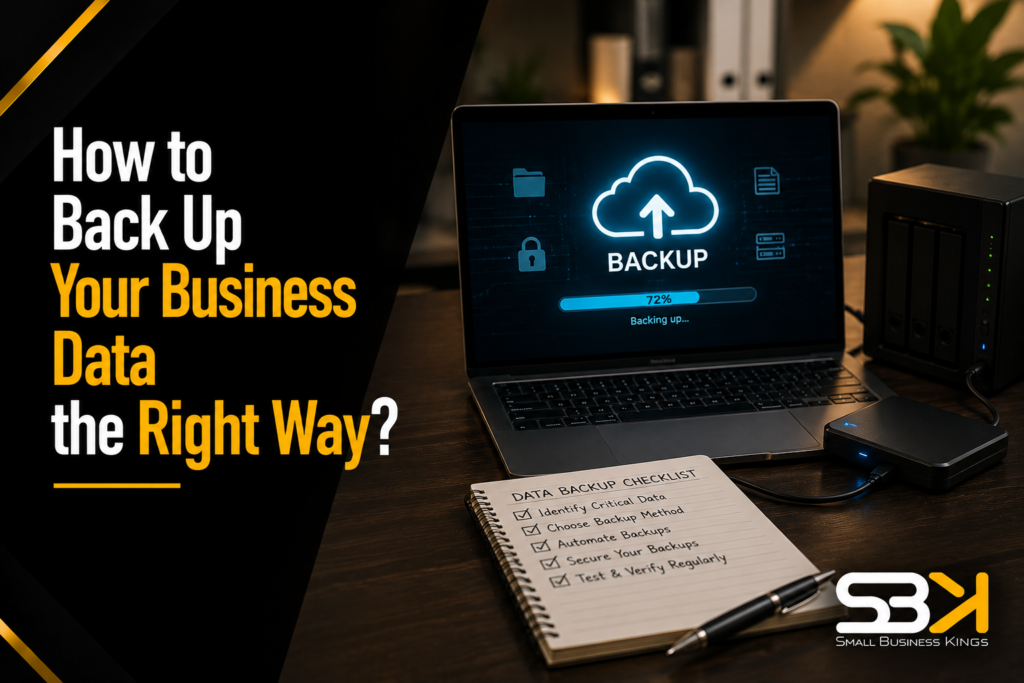
How to Back Up Your Business Data the Right Way?
Backing up business data properly means keeping at least three copies of your critical files, on at least two different types of storage, with at least one copy stored off-site and one copy that can’t be altered or deleted — commonly called the 3-2-1-1-0 rule. Getting this right isn’t just about avoiding lost files; it’s what determines whether your business can keep operating at all after a hardware failure, an accidental deletion, or a ransomware attack.
Why This Matters More Than Most Owners Assume
Data loss isn’t a rare, catastrophic event that only happens to unlucky businesses. It happens through hardware failure, an employee accidentally deleting or overwriting files, a laptop theft, or increasingly, ransomware attacks that specifically target backup systems, not just your primary files. When it happens without a working backup in place, the consequences compound quickly: lost revenue from the time spent recreating or trying to recover files, the cost of an emergency recovery service that still can’t guarantee full recovery, damaged customer trust if the loss involved their data, and potential regulatory exposure if you’re subject to data protection laws that require demonstrable data security practices.
The businesses that survive these incidents without serious damage are almost always the ones with a tested, working backup strategy already in place — not the ones scrambling to figure out backup for the first time after something’s already gone wrong.
Step 1: Identify What Actually Needs to Be Backed Up
Before choosing any tool, get a clear picture of what data your business genuinely can’t afford to lose:
- Financial records — accounting data, invoices, tax documents, payroll information
- Customer data — contact records, service history, contracts, communications
- Legal and compliance documents — contracts, intellectual property records, business agreements
- Operational data — anything your business needs to keep functioning day-to-day, from project files to inventory records
Then find out where this data actually lives, which is often messier than owners expect. Talk to your team directly — data frequently ends up scattered across a file server, individual employees’ local hard drives, laptops that rarely sync with anything central, and USB drives that someone assumed were a safe place to keep a copy. You can’t back up data you don’t know exists somewhere outside your intended system.
Launch Your Business On Fast VPS Hosting
Secure, high-performance hosting designed for growth. Don't lose sales to slow site speed.
Step 2: Understand RTO and RPO in Plain Terms
-
These two terms show up in almost every technical backup guide, and they matter, but they’re usually explained abstractly. Here’s the practical version:
- RTO (Recovery Time Objective) is the answer to: “If something breaks, how long can we survive without this data before it seriously damages the business?” For a business that runs entirely on email and cloud tools, that might be a few hours. For a business with a point-of-sale system processing transactions constantly, it might be measured in minutes.
- RPO (Recovery Point Objective) is the answer to: “How much recent work are we willing to lose?” If you back up nightly and something fails at 4 PM, your RPO is effectively the whole day’s work. If that’s unacceptable for your business, you need more frequent backups, not just a better storage location.
Answering these two questions honestly, in plain business terms, before choosing a backup solution prevents you from either overspending on enterprise-grade real-time backup you don’t actually need, or under-protecting yourself with an infrequent backup schedule that leaves too large a gap.
Step 3: Choose Your Backup Method (or More Realistically, a Combination)
-
No single backup method covers every failure scenario on its own. Understanding the tradeoffs of each helps you combine them sensibly rather than relying on just one.
Local Backups (External Hard Drives, NAS)
Physical storage devices connected directly to your network or individual machines. These offer the fastest recovery times and put you in full control of the hardware, with no ongoing subscription cost beyond the initial purchase. The downside: they’re vulnerable to the same physical risks as your primary systems — theft, fire, flood, or simple hardware failure — and if your only backup lives in the same building as your original data, a single site-wide incident can take out both simultaneously.
Cloud Backups
Automated services that store your data on remote servers, accessible from anywhere with an internet connection. This solves the “same building” problem local backups have, and most services handle scheduling and encryption automatically. The tradeoffs: cloud restore speeds can be slow for large volumes of data, ongoing subscription costs scale with the data you’re storing, and you’re trusting a third party’s infrastructure and continued existence — free-tier services in particular often lack the automated, versioned backups a real strategy depends on.
Hybrid Backups
Combining local and cloud storage gives you the fast recovery of local backup with the off-site protection of cloud backup, and it’s what most backup experts actually recommend as a baseline rather than choosing one or the other. If your local backup fails or is compromised, the cloud copy is still there, and vice versa.
Free Business Blueprint
Steal the roadmap smart entrepreneurs use to launch, grow, and scale their businesses while avoiding expensive mistakes.
Comparing Backup Methods
| Method | Recovery Speed | Off-site Protection | Ongoing Cost | Best For |
|---|---|---|---|---|
| Local (external drive, NAS) | Fast | No | Low, one-time hardware cost | Businesses needing quick restores of active files |
| Cloud | Slower for large volumes | Yes | Ongoing subscription, scales with data | Off-site protection and remote accessibility |
| Hybrid (local + cloud) | Fast for local, slower for cloud fallback | Yes | Combination of both | Most small businesses as a baseline strategy |
Step 4: Automate and Schedule Your Backups
Manual backup processes fail for a simple, human reason: someone forgets, gets busy, or assumes someone else handled it. Automating this removes that risk entirely.
- Daily or continuous backups for actively changing files (customer records, financial data, anything updated regularly).
- Weekly full system image backups to capture your entire system state, useful for a complete recovery rather than just individual file restoration.
- Continuous Data Protection (CDP) for genuinely critical, constantly changing systems where even a few hours of data loss would be unacceptable — this is a higher-cost, higher-complexity option worth it mainly for businesses where downtime has serious, immediate financial consequences.
Whichever cadence you choose, automation is what actually makes the schedule reliable — a backup strategy that depends on a person remembering to plug in a drive every evening will eventually fail exactly when you need it most.
Step 5: Encrypt and Version Your Backups
Two protections matter here, and both are frequently skipped by smaller businesses trying to keep things simple:
- Encryption, both while data is being transferred to backup storage and while it sits at rest there. This protects confidentiality and makes your backup far less useful to an attacker even if they gain access to it.
- Versioning, meaning your backup system keeps multiple historical copies rather than just overwriting the previous backup each time. This matters enormously for ransomware specifically: if your only backup gets overwritten with an already-encrypted or corrupted version, you have no clean copy to restore from. Versioning gives you the ability to roll back to a point before the incident occurred.
Step 6: Build in Immutability as Ransomware-Specific Protection
-
This is the piece most basic small-business backup guides miss entirely, and it’s become significantly more important as ransomware has evolved. Modern ransomware attacks frequently target backup systems directly, not just your primary data — if an attacker can alter or delete your backups along with your original files, having a backup at all doesn’t save you.
An immutable backup is one that cannot be modified, overwritten, or deleted for a defined period, even by someone with administrative access to the system. This is the “1” in the 3-2-1-1-0 rule — at least one of your backup copies should be immutable, specifically as insurance against an attacker (or even an accidental internal action) trying to destroy your recovery option along with your primary data. Look for this feature specifically when evaluating backup solutions, since not every cloud or local backup product includes it by default.
Step 7: Actually Test Your Backups on a Recurring Schedule
- An untested backup is a hope, not a plan. The only way to know your backup strategy actually works is to periodically try restoring from it — not during an actual emergency, but on a deliberate, scheduled basis.
-
-
- Set a recurring date — the first Monday of every quarter is a simple, memorable choice — to test restoring a sample of files or a full system image.
- Document what you find. If a restore fails or takes longer than expected, that’s exactly the information you need before a real incident forces the issue.
- Involve whoever would actually be responsible for recovery in a real emergency, not just whoever set the system up originally, so the process is genuinely verified end to end.
-
- Businesses that skip this step consistently discover backup failures at the worst possible time — during an actual emergency, when it’s too late to fix quietly.
A Worked Example: A 10-Person Service Business Setting Up Backup for the First Time
Say you run a small consulting business with customer files, invoices, and project documents spread across a shared drive, a few employees’ laptops, and one office desktop nobody’s quite sure is being backed up.
- Identify and locate data first. A quick team check-in reveals customer contracts live on the shared drive, but two employees have been saving working files locally on their laptops without syncing them anywhere.
- Set rough RTO/RPO targets. You decide the business could tolerate being down for a few hours without serious harm, but losing more than a day’s work would be a real problem — so daily automated backups are sufficient; you don’t need real-time continuous backup.
- Choose a hybrid approach: a NAS device in the office for fast local recovery, paired with an automated cloud backup service for off-site protection.
- Automate daily backups of the shared drive and require laptops to sync to the shared drive rather than storing anything solely locally going forward.
- Confirm encryption and versioning are enabled on both the NAS and the cloud service, and check whether the cloud provider offers an immutable backup tier — if not, evaluate a provider that does.
- Schedule a quarterly test restore, starting with a small sample of files in month one to confirm the process actually works before relying on it for a full system restore later.
This sequencing — know what you have, set realistic recovery targets, choose a combined method, automate it, protect it, and test it — turns backup from a vague good intention into an actual, reliable safety net.
Getting the Rest of Your Business Systems Backed by Something Solid
A backup strategy protects your data, but it’s just one part of a resilient business foundation — the same goes for your online presence and customer records more broadly. If your website, branding, or customer tracking systems are held together with ad hoc tools and no real backup or continuity plan of their own, that’s a similar risk sitting quietly in a different part of your operation. SBK works with Softangles for exactly this: they handle business website design and hosting, logo and brand/media design, and CRM/sales pipeline setup, so the systems you depend on daily are built on a solid, properly maintained foundation rather than something improvised that could fail you the same way an untested backup can.
Frequently Asked Questions
What is the 3-2-1-1-0 backup rule?
It means keeping at least three copies of your data, on at least two different types of media (for example, a local drive and a cloud service), with at least one copy stored off-site, one copy that’s immutable (can’t be altered or deleted), and zero errors confirmed through regular testing. It’s a more complete, modern update to the older 3-2-1 rule, specifically addressing ransomware’s tendency to target backup systems directly.
How often should a small business back up its data?
It depends on how much data changes daily and how much loss you could tolerate (your Recovery Point Objective). Daily automated backups are sufficient for many small businesses, while businesses with constantly changing critical data — a busy point-of-sale system, for example — may need continuous or near-real-time backup instead.
What’s the difference between backup and disaster recovery?
Backup is the process of creating copies of your data so it can be restored if lost or corrupted. Disaster recovery is the broader plan for getting your entire business back up and running after a major incident — including systems, infrastructure, and processes, not just the data itself. A good backup is a critical piece of disaster recovery, but it isn’t the whole plan on its own.
Is cloud backup enough on its own, or do I need local backup too?
Cloud backup alone typically works, but combining it with local backup (a hybrid approach) gives you faster recovery for everyday issues while still protecting against site-wide disasters that could take out local backups alone. Most small businesses are well served by a hybrid approach rather than relying on a single method exclusively.
How do I know if my backup actually works?
The only reliable way is to periodically test an actual restore — not just check that a backup job “completed successfully,” but actually recover a sample of files or a system image and confirm it works as expected. A recurring quarterly test, at minimum, catches problems before they matter in a real emergency.
Launch Your Business On Fast VPS Hosting
Secure, high-performance hosting designed for growth. Don't lose sales to slow site speed.
What’s the biggest backup mistake small businesses make?
Not testing backups regularly is the most common and costly mistake — a backup that silently fails or becomes corrupted often isn’t discovered until an actual emergency, when it’s too late to fix quietly. A close second is relying on a single backup method or location, which leaves you exposed if that one method fails or is compromised.