

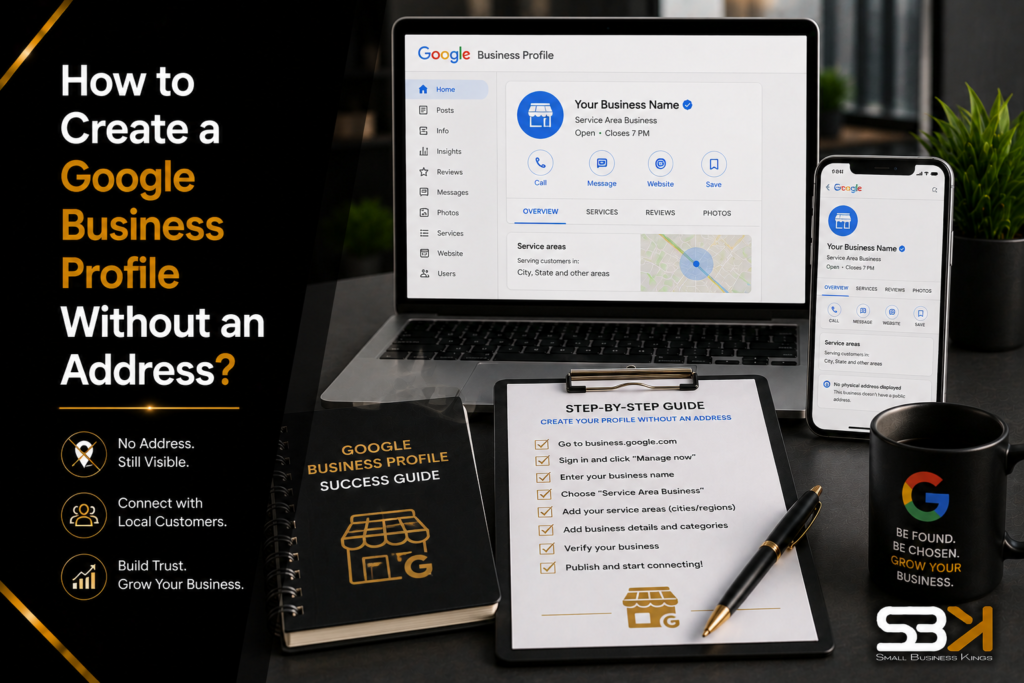
How to Create a Google Business Profile Without an Address?
You can create a Google Business Profile without displaying a physical address by registering as a Service-Area Business (SAB) — you still provide Google a real address for verification purposes, but it stays private and only your service area (cities, ZIP codes, or regions) shows publicly. This works for mobile services, home-based businesses, freelancers, and consultants who serve customers without a walk-in storefront.
Who Actually Qualifies for This Setup
Google’s service-area option is designed for businesses that interact with customers without a fixed public-facing location:
- Mobile services (plumbers, electricians, cleaners, mobile car washing)
- Home-based businesses and freelancers
- Consultants and coaches operating remotely or on-site at client locations
- Online retailers offering local delivery
Who doesn’t qualify: purely online businesses with no service delivery or in-person customer interaction at all — blogs, affiliate sites, or purely informational websites generally aren’t eligible for a Google Business Profile, since Google requires some form of connection to customers, either physically or through service delivery.
If your business has any kind of hybrid model — say, a small showroom customers can occasionally visit, in addition to mobile service — you may actually qualify as a standard business with a visible address rather than a pure service-area business. Consider whether hiding your address is actually the right choice, or whether showing it (with your service area also listed) would better represent how customers actually reach you.
Step-by-Step: Setting Up Your Profile as a Service-Area Business
- Go to the Google Business Profile Manager and sign in with your Google account.
- Enter your business name and select a category that accurately describes what you do — this affects which searches you show up in, so be specific rather than generic.
- When asked “Do you want to add a location customers can visit?”, select “No.” This is the step that determines whether you’re set up as a service-area business — selecting the wrong option here (for example, “Local store”) means you won’t have the option to hide your address at all.
- Define your service area by listing the specific cities, ZIP codes, or regions you actively serve. List only areas where you genuinely provide service — see the accuracy note below, since padding this list can create real problems later.
- Add your contact information — phone number and website URL — so customers can reach you without a visible address.
- Provide a mailing address when prompted for verification. This is typically your home or business address and is required for Google to confirm your business is legitimate — it will not be shown publicly regardless of what you enter here, as long as your privacy settings are configured correctly (see the next section).
- Choose a verification method and complete it.
- Fill out the rest of your profile — business hours, description, photos, and services — since a sparse profile ranks and converts worse regardless of how well you’ve hidden your address.
Choosing a Verification Method
-
Google offers several verification paths, and they aren’t all equally fast or convenient:
🚀 Top Rated Web Hosting ⚠ Save 30% TodayLaunch Your Business On Fast VPS Hosting
Secure, high-performance hosting designed for growth. Don't lose sales to slow site speed.
Method How It Works Typical Speed Phone or text Google sends a code via automated call or SMS to your business number Fastest — often instant Email Google sends a code to your business email Fast, typically same-day Google Search Console Instant verification if your website is already connected to Search Console Fastest, if eligible Postcard by mail Google mails a physical postcard with a code to your provided address Slowest — commonly one to two weeks Video verification A live call or submitted walkthrough video showing your business operations Variable, requires scheduling or review time Google offers different methods depending on your business category and account history — you may not see every option listed here. If you’re offered a phone, text, or Search Console option, those are typically faster than waiting on a mailed postcard.
Free Business Blueprint
Steal the roadmap smart entrepreneurs use to launch, grow, and scale their businesses while avoiding expensive mistakes.
Double-Check That Your Address Is Actually Hidden
After setup, confirm your address privacy explicitly rather than assuming it’s hidden by default:
- Sign in to your Google Business Profile and open Edit Profile.
- Go to the Location section and select the pencil icon next to the address field.
- Confirm the “Show business address to customers” toggle is switched off.
- Save your changes — updates can take a few days to fully reflect across Google Search and Maps.
This step matters even if you selected “No” to a visible location during initial setup, since settings can occasionally default differently than expected, especially if you’re editing an existing profile rather than creating a new one.
If You Already Set Up Your Profile With a Visible Address
-
If you created your profile as a standard business with a public address and want to switch to hiding it, you don’t need to start over:
- Follow the same steps above — Edit Profile > Location > toggle off “Show business address to customers.”
- If your business type was originally set as a storefront/local store rather than a service-area business, you may need to update your business type in addition to toggling address visibility, since these are related but distinct settings.
- Allow a few days for the change to propagate across Google Search and Maps — don’t assume it’s failed if it doesn’t update instantly.
Be Accurate About Your Service Area — This Isn't Just a Formality
Google actively reviews service-area claims, and listing areas you don’t genuinely serve isn’t just poor practice — it risks a suspension or a removal of your ability to hide your address if Google determines the profile misrepresents your actual operations. Keep your listed service area limited to places you can realistically and regularly serve, rather than padding it broadly to appear in more searches. If your actual service area changes — you stop serving a region, or expand to a new one — update your profile promptly rather than leaving outdated areas listed.
Choosing Service Area Boundaries Strategically
- By city or region name — simplest and clearest for customers, works well if your service area maps cleanly to recognizable places
- By ZIP code — more precise, useful if you serve parts of a metro area but not others
- By radius from a central point — Google also supports this option in some setups, which can be simpler to maintain if your coverage is defined more by distance than by specific named areas
Whichever method you choose, keep the total area realistic. An area that’s too broad can dilute your relevance in local search results, since Google weighs how specifically your service area matches a searcher’s actual location.
Does Hiding Your Address Affect Your Local Search Rankings?
-
No — hiding or omitting a public address doesn’t inherently hurt your ranking for local search queries. What does affect ranking is the completeness and accuracy of everything else in your profile: your category selection, service descriptions, review volume and recency, and how actively you post updates. A service-area business with a complete, accurate, actively maintained profile can rank competitively against storefront businesses in the same search results.
Building Visibility Without a Public Address
-
Since your address won’t be doing any of the work of establishing local credibility, everything else on your profile has to work harder:
- Choose your primary category with care — it has an outsized effect on which searches surface your business, more than almost any other single field
- Write a specific, keyword-relevant business description — a generic description performs worse than one that reflects the actual services and areas you serve
- Actively collect and respond to reviews — reviews substitute for a lot of the trust signal a visible storefront would otherwise provide
- Post regular updates — offers, project photos, or business news keep your profile looking active, which matters more for service-area businesses without foot traffic to otherwise signal activity
- Build citations in relevant directories — consistent business information across other platforms (not just Google) reinforces your legitimacy to both customers and search algorithms
Keeping Your Google Profile Consistent With the Rest of Your Business
Your Google Business Profile is only as credible as it looks alongside everything else customers find when they search for you — your website, contact details, and branding all need to match. If your business’s website or customer-facing information isn’t set up consistently yet, it’s worth handling that alongside your Google profile rather than as an afterthought. SBK works with Softangles for exactly this — they handle business website design, hosting, logo and brand/media design, and CRM/sales pipeline setup, which keeps your website and contact information consistent with what you’re presenting on your Google Business Profile instead of sending mismatched signals to potential customers.
Frequently Asked Questions
Do I need to provide an address to Google at all if I want to hide it?
Yes — Google still requires a real mailing address for verification purposes even though it won’t be shown publicly, as long as your address privacy setting is correctly configured. This address confirms your business is legitimate; it’s not the same as the public-facing information customers see.
What businesses don’t qualify for a service-area Google Business Profile?
Purely online businesses without any physical service delivery or customer interaction — such as blogs, affiliate sites, or informational-only websites — generally aren’t eligible, since Google requires some real connection to customers, either in person or through delivered services. Mobile services, home-based businesses, freelancers, and consultants who serve clients without a walk-in location typically do qualify.
Will hiding my address hurt my local search rankings?
No — omitting a public address doesn’t inherently hurt your ranking for local searches. What matters more is your category accuracy, service descriptions, review activity, and how consistently you post updates to your profile.
What happens if I list service areas I don’t actually serve?
Google reviews service-area accuracy, and misrepresenting your actual coverage risks a suspension or removal of your ability to hide your address. Keep your listed area limited to where you realistically and regularly provide service, and update it promptly if your actual coverage changes.
Can I switch an existing profile from showing an address to hiding it?
Yes — go to Edit Profile, then Location, and toggle off “Show business address to customers,” allowing a few days for the change to appear across Search and Maps. If your business type was originally set up as a storefront rather than a service-area business, you may also need to update that setting alongside the address visibility toggle.
Launch Your Business On Fast VPS Hosting
Secure, high-performance hosting designed for growth. Don't lose sales to slow site speed.
Which verification method is fastest for a new profile?
Phone, text, or Google Search Console verification (if your website is already connected) are typically the fastest options, often completing same-day or instantly. Postcard verification by mail is the slowest, commonly taking one to two weeks, so use it only if faster methods aren’t offered to your account.